

Camera and Views in GameMaker
You can have an entire level set up but only show a small amount of map on the screen. This is done be the use of cameras. In order to use them you need to first, go into your room, Under Viewports and Cameras, enable Viewports and under Viewport0 tick the visible option.
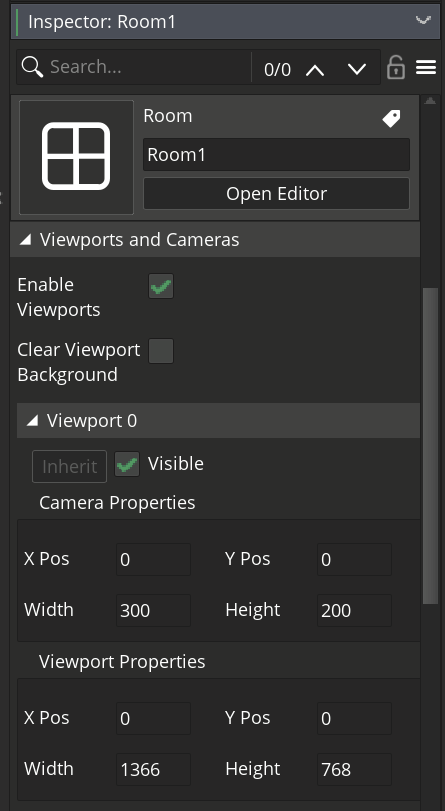
Now we need to create a camera object so we can handle transitions and other things we will talk about later.
In our o_camera object, we need to have two Events. One Create Event to set up the camera and One Step event to update the camera’s position accordingly.
Create Event
Here we need to give our camera a target to follow. This target can change through out the game so for example, we can transition from the player to a boss enemy then back to the player with ease. Also we need to specify which viewport we’re using. This is saved to our “cam” variable.
In addition to the target, we need to initialize the position of camera so we can change it later. Moreover, since we probably don’t want to exceed the room limits, we need to save some view sizes too.
/// @description setup camera

cam = view_camera[0];

//use this(the object) when you have only one instance of the obj, since it returns the last instance.
follow = o_player; //so we can change it in cut scenes or when we want to focus on an entity

view_w_half = camera_get_view_width(cam) / 2 ;
view_h_half  = camera_get_view_height(cam) / 2 ;


//doesnt really matter. just initialize.
xTo = xstart;
yTo = ystart;
Step Event
Here we need to first check if our target exists. If so, we set our final position to move to the target’s coordinates.
/// @description update camera


//update destnation
if (instance_exists(follow)) {
    xTo = follow.x;
    yTo = follow.y;
}
Then, since we want a smooth transition (faster when camera is far and slower when camera is near, we need to do some math calculations. We take the x and y distance of camera from the object and divide it by 25 so it moves faster when far away. Then we can update our X and Y accordingly.
//update object position
// moves smoothly to the object
x += (xTo - x) / 25;
y += (yTo - y) / 25;
As I mentioned above, we don’t want to exceed the room’s space so we need to clamp the camera’s x and y to only go to a certain border.
//clamp it so it dont go out of the room borders
x = clamp(x, view_w_half, room_width - view_w_half);
y = clamp(y, view_h_half, room_height - view_h_half);
Lastly, we need to update the camera position. Since we want our target to be in the middle of the camera, we need to subtract half of its width and height from the target position
//update camera view
camera_set_view_pos(cam, x-view_w_half, y-view_h_half);
Easier solution, simpler transition, no zooming on other entities
There’s a way easier solution for a camera. If you don’t want your camera to move to a boss enemy and back to the player, you can simply use GameMaker GUI to set up some variables for the camera that basically does the same thing.
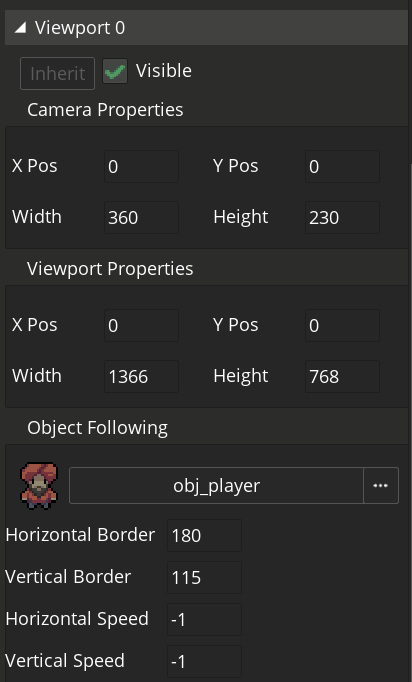
In the image above you can see the camera follows the player object. You can enter the size of the camera in the Width and Height properties. Then for the player to be in the middle of the camera, you can set your horizontal and vertical border to half of your camera. This way, it will follow your player and the player shows up in the middle of the screen.